
![[LoRA Guide] Z Image Turbo Training with AI-Toolkit and Merging It!](/content/images/size/w960/2025/12/LN_845764713767329_00001_.jpg)
Z Image Turbo has been making waves recently. Combined with the solid support from AI-Toolkit, I decided to put it to the test and merge. Since Z Image Turbo is a distilled model, the training process feels a bit different compared to standard models.
I’ve uploaded a few test results—if you’re interested, feel free to check them out on my CivitAI profile.
Choosing a Trainer for Z Image Turbo
Compared to Kohya Musubi-Tuner, AI-Toolkit is a much more user-friendly ("lazy-person approved") trainer. Thanks to the adapters provided by the author specifically for Z Image Turbo (hereafter referred to as ZIT), we’ve seen an explosion of ZIT LoRAs lately.
There is another specialized tool called None Z Image Turbo Trainer, which uses some unique methods for ZIT. However, it is more demanding in terms of VRAM and configuration complexity, making AI-Toolkit a better starting point for most users.
AI-Toolkit Configuration Tips
The AI-Toolkit GUI is incredibly intuitive. If you follow the author’s video tutorials, you should be able to start training quickly.
AI-Toolkit - Z Image Turbo Lora
Here are some key settings for ZIT LoRA training:
- LoRA Only: As of now, it only supports LoRA training.
- Batch Size: Must be set to
1; higher values may cause errors. - Steps: Aim for
5000or more for better results. - Cache Text Embeddings: Make sure this is Enabled.
- Use EMA: Currently seems to be bugged (Issue #524); enabling it might not have any effect.
- Dataset: Enable Cache Latents.
- Resolution: While the default includes
512,768, and1024, you can save time by training only on1024. - Differential Guidance: In the ADVANCED settings, enable Do Differential Guidance and set the Scale to
3. This helps the model learn significantly faster. - Simple Prompts: You can reduce this to a single prompt to save processing time.
These are the basic settings. With these settings, you can run a Lora test to see if you get the results you want.
P.S. My 5000 Steps training dataset is based on a 10K dataset; please use your own judgment.
Diving into Advanced Settings
By clicking Show Advanced in the top-right corner, you can access the underlying .yaml configuration. Note: If the UI breaks after switching back to Show Simple, it means there is a syntax error in your YAML.
Advanced mode allows you to tweak parameters not available in the GUI:
- Datasets: You can set
num_repeats(equivalent to the number prefix in Kohya folder names). - Optimizers: Options include
lion,lion8bit,prodigy,prodigy8bit,adam,adamw,adam8,adamw8,ademamix8bit,adagrad,automagic. - LR Schedulers: Defaults to
constant, but you can switch tocosine,cosine_with_restart,constant_with_warmup,linear,step. - For
constant_with_warmuprequiresnum_warmup_steps(default1000) withinlr_scheduler_params. - For
cosine_with_restarts, definetotal_itersandmax_iterationswithinlr_scheduler_paramsis reauired.
The rest of the settings are basically available in the GUI. Of course, after you have set up the above functions, do not switch back to the GUI to change the relevant settings, otherwise you will have to start over.
Validation
Once training is complete, you can verify the results using a standard ComfyUI workflow.
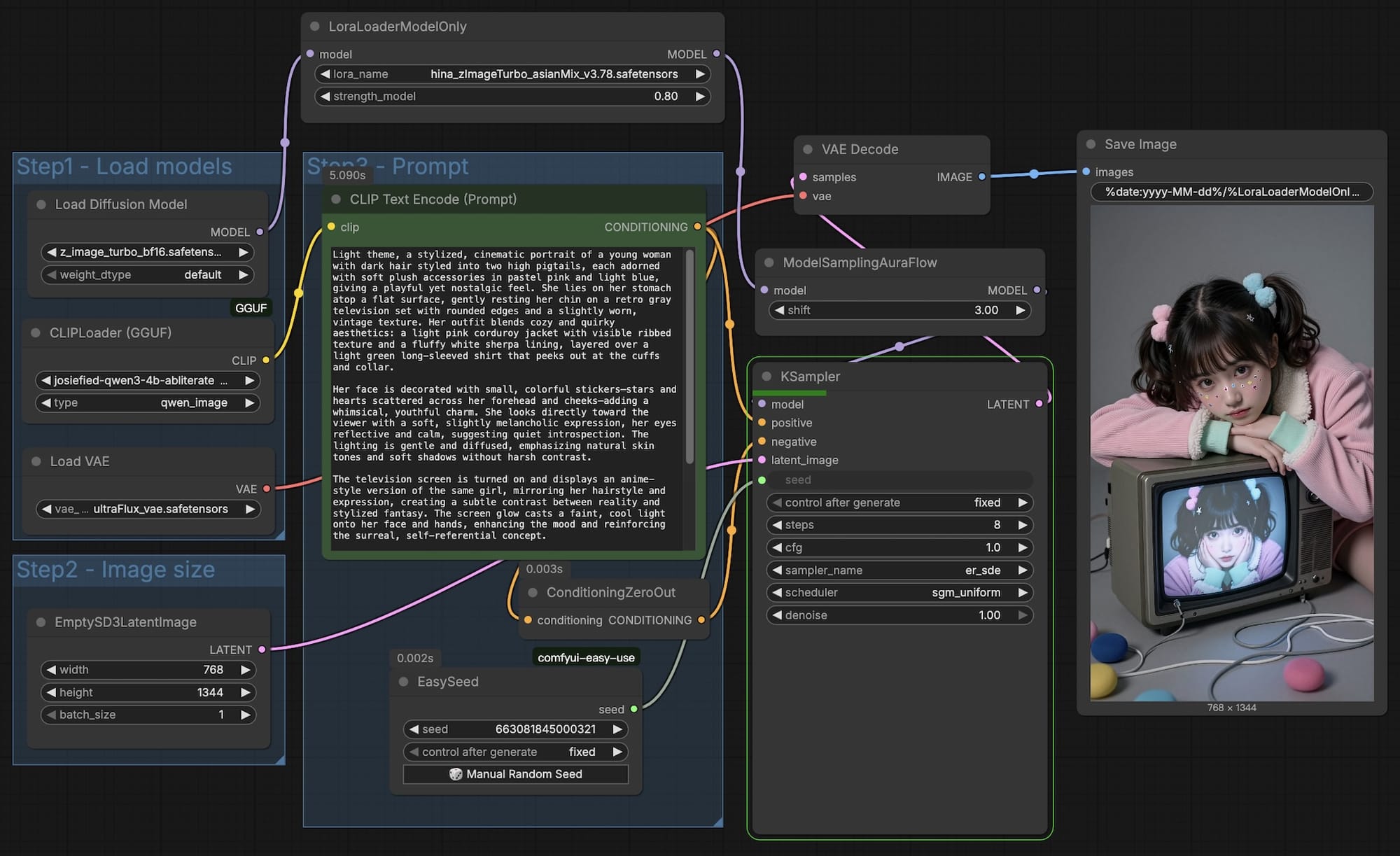
After achieving a stable result, the next step is Merging.
Merging
By examining the internal structure of an AI-Toolkit LoRA,
diffusion_model.layers.0.attention.to_out.0.lora_A.weight
diffusion_model.layers.0.attention.to_k.lora_B.weight
diffusion_model.layers.0.attention.to_out.0.lora_B.weight
diffusion_model.layers.0.adaLN_modulation.0.lora_B.weight
diffusion_model.layers.0.feed_forward.w1.lora_B.weight
diffusion_model.layers.0.attention.to_v.lora_B.weight
diffusion_model.layers.0.adaLN_modulation.0.lora_A.weight
diffusion_model.layers.0.feed_forward.w1.lora_A.weight
diffusion_model.layers.0.feed_forward.w2.lora_A.weight
diffusion_model.layers.0.attention.to_q.lora_B.weight
diffusion_model.layers.0.feed_forward.w2.lora_B.weight
diffusion_model.layers.0.attention.to_q.lora_A.weight
diffusion_model.layers.0.attention.to_k.lora_A.weight
diffusion_model.layers.0.attention.to_v.lora_A.weight
diffusion_model.layers.0.feed_forward.w3.lora_A.weight
diffusion_model.layers.0.feed_forward.w3.lora_B.weight
We can see it consists of roughly 30 layers (e.g., diffusion_model.layers.0.attention...). Understanding these layers allows us to fine-tune weights during merging.
We can adjust the weights of these 30 layers and then assemble the Lora weights. Based on the AI's explanation (the following cannot be guaranteed to be accurate; please use your own judgment):
Detailed Analysis of Model Layers and Their Impact
| Component | Key Impact Area | Description |
|---|---|---|
| adaLN_modulation (Adaptive Layer Norm) | Global Ambiance, Lighting, Color Tone, Contrast | Acts as the model's "Command Center." It processes the global embeddings of Timesteps and Prompts, dictating the overall artistic style and lighting. If your LoRA results appear washed out, overly dark, or have incorrect color grading, the weight of this layer is likely the cause. It maps high-level concepts (e.g., "Cinematic," "Vintage") across the entire image. |
| Attention Mechanism | Structure & Relationship Center | Responsible for determining the relationship between different elements within the image (e.g., objects vs. objects, or text vs. objects). |
| attention.to_q, attention.to_k | Composition, Layout, Prompt Following, Spatial Logic | The matching of Q (Query) and K (Key) determines "where" the model focuses. It ensures that spatial prompts (e.g., "a cat sitting on a sofa") result in a logical layout where the cat is actually on the sofa rather than floating beside it. |
| attention.to_v | Feature Details, Subject Content, Material Texture | Once the focus area is decided, V (Value) provides the actual "content" for that area. This layer directly dictates the physical appearance and material properties of the subject. |
| attention.to_out | Integration & Image Cohesion | Projects the results of the attention mechanism back into the main flow, ensuring the subject and background blend seamlessly without jarring artifacts. |
| Feed Forward (FFN) | Knowledge Base & Detail Processing | Functions as the model's "Visual Encyclopedia." |
| w1, w2, w3 (SwiGLU Structure) | Facial Micro-details, Clothing Texture, Background Complexity | While Attention decides "there is a face here," the FFN determines "what the eyelashes look like." This is where specific visual knowledge—such as the design of a uniform or the unique facial features of a celebrity—is stored. |
Holistic Impact Reference Table
| Influence Area | Key Components | Description |
|---|---|---|
| Prompt Adherence | adaLN, to_q, to_k | Determines if the model understands your instructions and places elements in the correct locations. |
| Composition & Layout | to_q, to_k | Controls the scale and position of the subject and its spatial relationship with the background. |
| Subject & Facial Likeness | to_v, w1, w2, w3 | Determines the accuracy of the subject, the refinement of facial features, and skin textures. |
| Clothing & Fine Details | w1, w2, w3 | Handles intricate details like fabric folds, button textures, and jewelry. |
| Background & Environment | to_q, to_k, to_out | Controls the complexity of the background and how naturally the subject is integrated into the environment. |
| Color & Lighting | adaLN, to_v | Influences color saturation, tonal balance, and the direction/intensity of light sources. |
Since I wanted more control over the merging process, I developed a small utility script:
This tool allows you to adjust weights for a single LoRA or merge multiple ZIT LoRAs.
Note: That the
--ratiooption is required, and the other block weights will be multiplied by the--ratiooption before being added together.
Summary
To be honest, I’m not a Python expert. I provided the conceptual logic, and Claude helped me write the actual code. It’s a testament to how AI agents can help us bridge the gap between an idea and a functional tool!
![[Lora] Z Image Turbo 與 AI-Toolkit](/content/images/size/w960/2025/12/hina_zImageTurbo_caline_v3-dream-1.jpg)
![[AI] 與 AI Agent 一起開發優化器](/content/images/size/w960/2025/07/00059-293292005.jpg)
![[SD3.5] Quickstart - Lora Training with Kohya](/content/images/size/w960/2024/11/ComfyUI_temp_pffyu_00017_.jpg)